This article aims to guide users through the results stage of the performance evaluation process on the Buk platform. It explains the individual and general reporting functionalities, detailing step by step how to access relevant information about participants, evaluators, competencies, objectives, and organizational results. In addition, it describes the available actions, interpretation of charts, and report configuration to facilitate analysis and decision-making in this key stage.
Considerations:
The report can be published even if some evaluations are missing, provided there are responses available for the participant.
If there are participants on leave or with pending evaluations, the report can be published as long as there are responses available for the participant. However, reports for those who have not completed their evaluation will not be available until they finish their process and the report is published again.
Process on the Platform:
During a performance evaluation, you can continuously monitor both individual and overall organizational results. To do so, follow these steps: enter the evaluation of interest, click "Performance", select "Evaluations" and, finally, click the title of the evaluation you want to review.
In the "Results" tab you will find the Individual and General Reporting of the evaluation
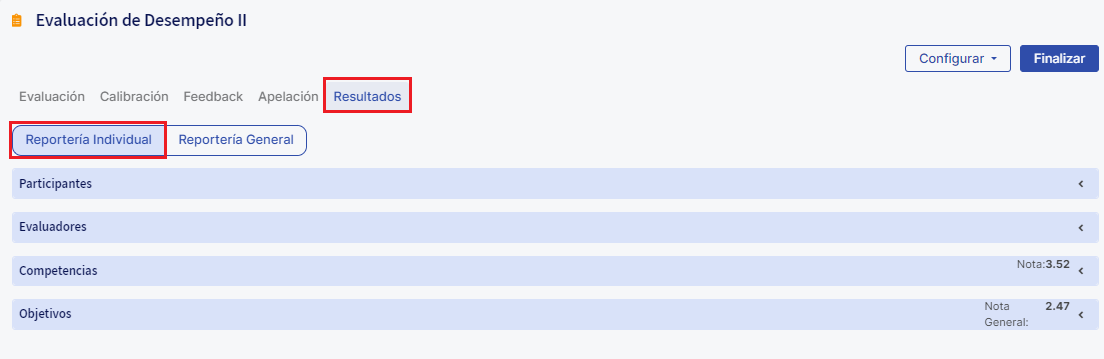 Individual Reporting:
In Individual Reporting you can review information about participants, evaluators, and the Competencies and Objectives results for each participant in the evaluation.
-
Participants:
In the "Participants" tab you will find a list of the evaluated with their information, such as document number, position, job family, division, area, subarea and supervisor. In addition, you can verify whether the report has been published on the employee profile in the "Report status" column. In "Form status" you can check how many forms have been submitted, and in "Participant stage" you can see which stage each participant is in.
As participants progress in the evaluation, you will be able to consult their "Final score" and, in "Results Scale", see which category each employee falls into according to the results scale configured in the evaluation.
It is important to note that the employee's final score will depend on the configurations made in the evaluation, the selected calculation methodology, and the results scale configured.In the "Actions" column, you can perform various actions, such as publishing results, which will include the score report on the employee's profile, returning participants to the previous stage, viewing published reports, and removing participants from the evaluation.
Also, you can select participants en masse and, in "Bulk actions", remove participants, publish results, download reports, and return participants to a previous stage.
-
Evaluators:
In the "Evaluators" tab you will find a list of forms by evaluation type. You can review in the columns information about the evaluator, the evaluator's subarea, the evaluated participant's document number, the evaluated participant's subarea, the evaluation type, the form status, the score for the evaluation type and the category in the results scale. In the "Actions" column you can view the form with the responses for each evaluation type. Use the filters of each column to search for specific evaluations. You can also add additional conditions to the filters to display the information you need.
Remember that the final score per evaluation type will depend on the form configuration, including whether competencies and objectives were evaluated, as well as the weights assigned to each.
-
Competencies:
In the "Competencies" tab you will find a chart with the overall scores of all "Transversal competencies" and "Specific competencies". Hovering over a competency, you will see the result for that competency, which is a simple average of the scores obtained in all the forms in which it was evaluated and yielded a result.
On the right side you will find the "Overall Competencies Result", which is a simple average of the general scores of all competencies
Additionally, you can export the chart and download the competencies results from the forms by evaluation type for all participants.
You can also review the list of evaluation types with the scores of the competencies evaluated. In this list, you will find the "Final Competencies Score" for each evaluation type, calculated according to the weightings entered in the form, and the "Final score", which corresponds to the overall score for the evaluation type.
-
Objectives:
You can also review the "Objectives" tab, where you will find a chart that represents the scores of the objective categories evaluated in the evaluation
On the right side you will find the "Overall Objectives Score", which is a simple average of the results of the objective categories evaluated
In the list you will find the result of the objective categories evaluated by evaluation type. The "Final Objectives Score" will depend on the weight configuration entered in the forms, while the "Final score" represents the overall score for the evaluation type.
General Reporting:
In the "General Reporting" tab you can review the evaluation results at the organizational level. You will find information such as the Normal Distribution chart, the Ninebox (in case potential questions were evaluated) and the details of the scores at the organizational level.
Normal Distribution
-
Ninebox:
If Potential-type Questions have been added to the evaluation, you will be able to view a Ninebox composed of nine quadrants, where the y-axis will represent potential scores and the x-axis will represent performance scores. Employees will be plotted in the quadrants according to the scores obtained in the performance evaluation
To configure the data and characteristics of the Ninebox, click the gear icon. You can adjust the variables and select the number of quadrants the N-box will have on each axis. In addition, you can modify the maximum values of the ranges, which will automatically redistribute employees into the quadrants according to the new range definitions.
You also have the option to configure the quadrants of your Ninebox. You must select the quadrant you want to edit and you will have the possibility to change its name, color, and add a description that will be displayed directly in the Ninebox.
We remind you that you also have the Development module available, where you can create and customize N-boxes to visualize employee talent according to your specific needs. For more information, here are some articles:
- N-box from an evaluation in Buk
- N-box from an external evaluation
- How to calibrate in the Development module
-
Score details
In "Score details" you can review the organization's overall score according to the general scores, the competencies scores and the objectives scores. In "Score obtained" you will find the organization's overall score, followed by the maximum score of the results scale used. The "Score obtained" is a simple average of the final scores of all participants in the evaluationobtained from the report available in Settings > Data download, specifically in the Participants sheet. In the chart you can review the number of employees in each category according to their obtained scores and the results scale configuration.
-
Scores by organizational level
In "Scores by organizational level" you can review the overall results, as well as the results by competencies and objectives, corresponding to thesubareasof the organization.
-
Scores by competencies and objectives
In the "Scores by Competencies and Objectives" section, you can review the general scores by Competencies in the "Competencies" tab, which is calculated as the simple average of the scores for each competency in the forms. Additionally, in the "Objectives Category" section, you will find the general scores of the objective categories, which are obtained by the arithmetic mean of all objective ratings within each category
Review of results by the employee
On the other hand, an employee can view their results within their individual profile on the "Talent" tab by clicking on "Evaluation", which will be available once it has been completed and published.
In this way the employee will be able to see their evaluation in detail, which includes:
- Evaluation summary.
- Charts and ratings by sections: Competencies and Objectives.
- Form detail with each question.
- Feedback.
- Historical evaluations.
- Option to export the evaluation in PDF format.
Important:If a report that has already been published is returned to a previous stage, it will no longer be visible to the employee until it is published again after completing the corresponding stage.
🤖 This article was translated using artificial intelligence. View original article.